
Creating Patterns
Want your lamp to do more than glow a solid colour? The Animations feature in the LuvLink app lets you set a pattern — solid, swirling, pulsing, flashing, or storm. When you send a colour, every lamp in your group lights up in that pattern, not just yours.
The Animations feature
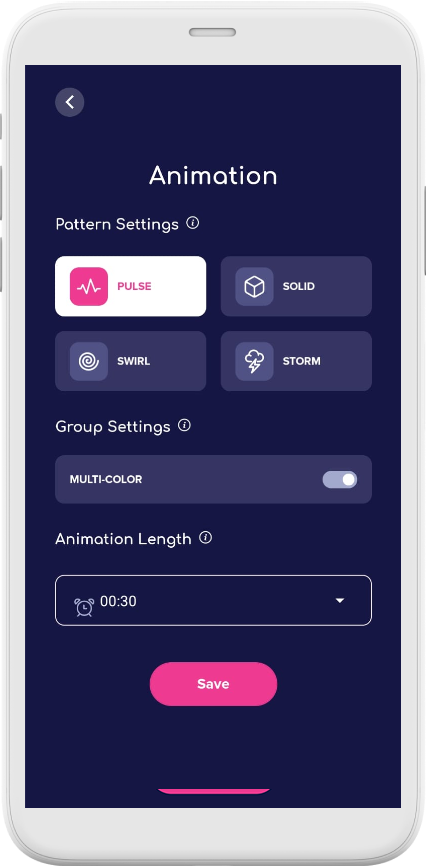
Animations let the colours you send to your group show up in a specific pattern instead of a plain solid light.
If you pick the Swirl pattern and send a colour, the other lamps in your group will light up with a swirling effect. If you pick the Storm pattern, every lamp in your group will show a storm-like pattern in the colour you sent.
Multi-Colour — make all your group's colours appear at once
The Multi-Colour setting takes Animations one step further. It's a group setting, so it applies to every Friendship Lamp connected to the same GroupID.
When Multi-Colour is on, your lamp shows the colours of everyone in the group who has touched their lamp or sent a colour via the app. If you pick a new colour and send it, that colour gets added to the mix too.
How Multi-Colour looks with each pattern:
- Swirl — all the colours appear at the same time.
- Pulse — one colour appears at a time, with each pulse showing a different colour.
You can toggle Multi-Colour on and off whenever you like — it's a group setting, so switching it affects everyone connected to your GroupID.
How to set an Animations pattern
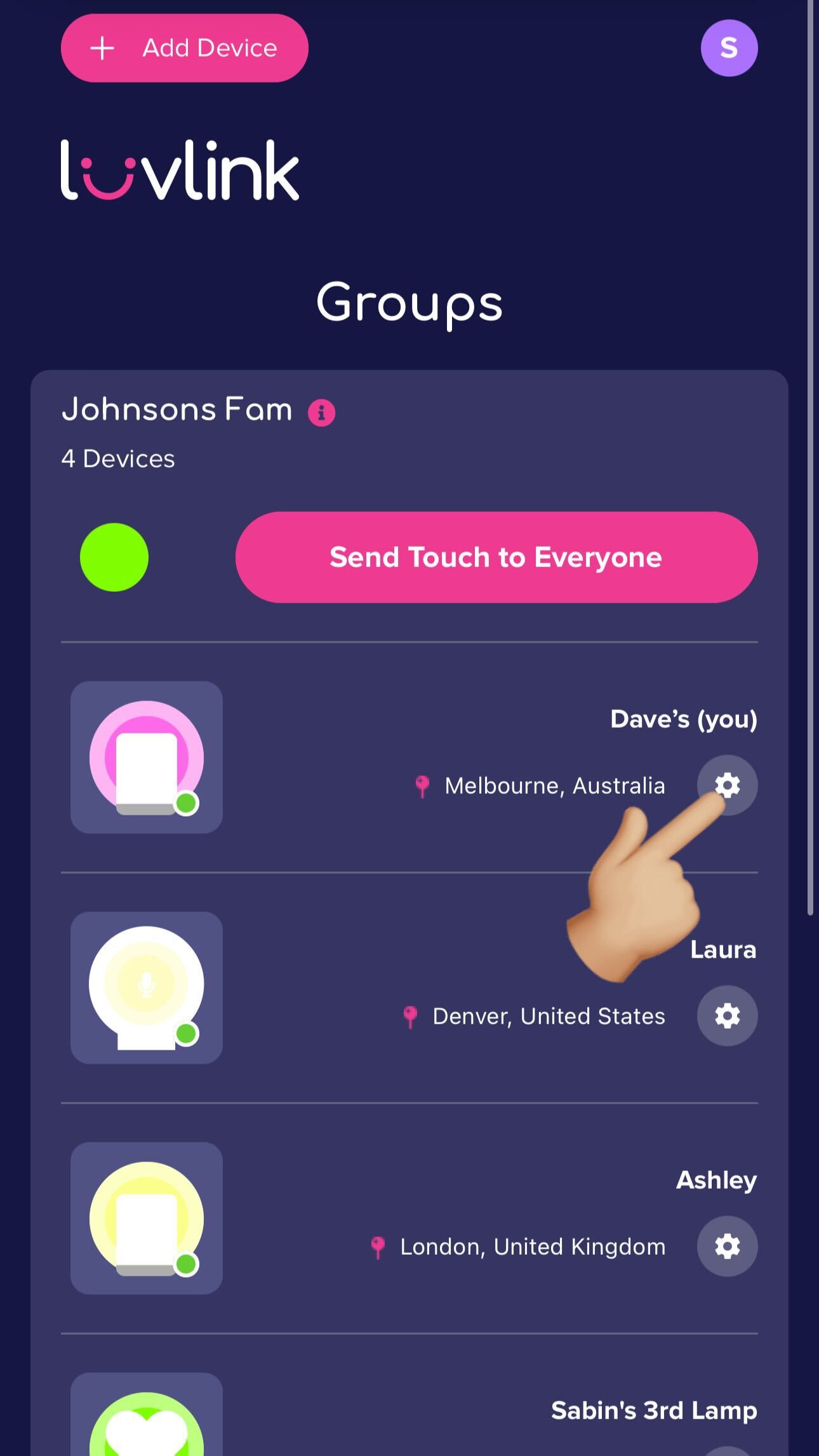
- Open the LuvLink app and tap the cog wheel (settings) for your lamp.
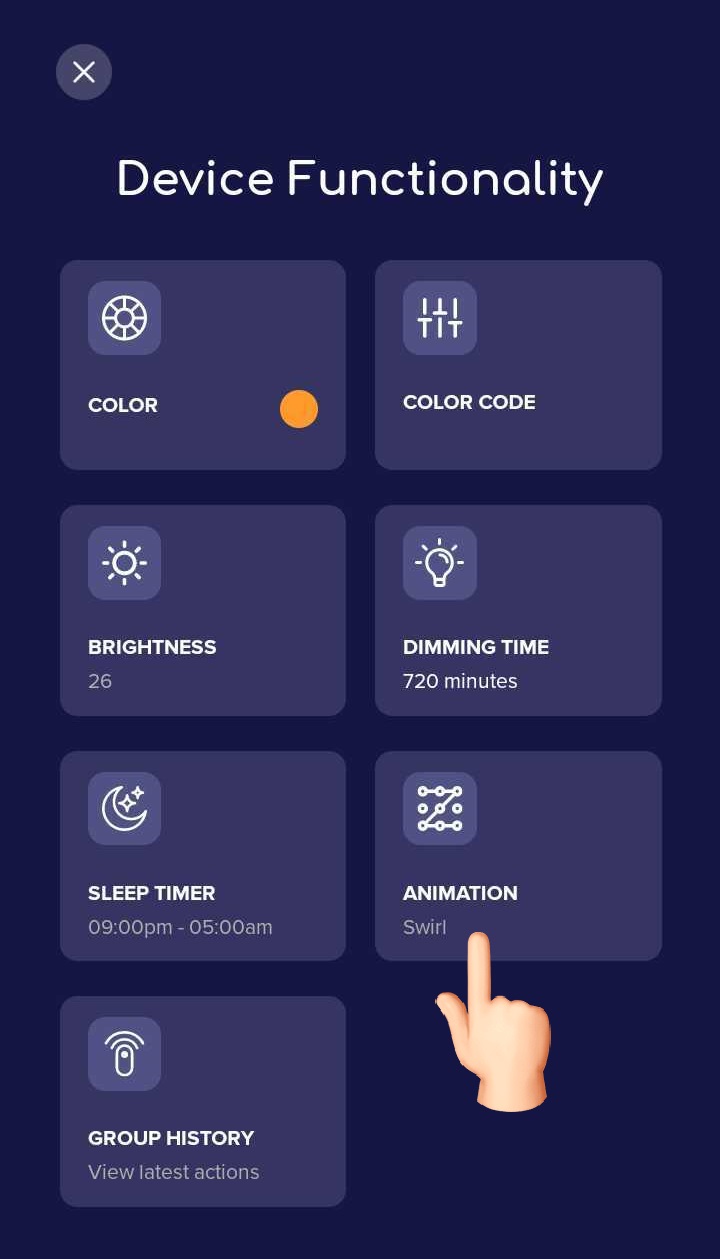
- Tap Animations under Device Functionality.
- Choose your pattern, set the length/duration, then tap Save.
Still stuck?
If you need a hand, reach out to the LuvLink Support Team via our contact form — we're happy to help.