
Connect to Two Groups with Just One Lamp
One Friendship Lamp can belong to two separate groups at the same time — no second lamp needed. Open the lamp's settings in the LuvLink app, go to the GroupID section under Device Information, then either enter an existing GroupID or create a new one. That's all it takes.
What this feature does
Your Friendship Lamp can be part of two different groups at once — for example, one with family and a separate one with friends. You manage both groups from the LuvLink app and can switch between them with just a few taps.
How to connect one lamp to two groups
- If this is your first time setting up the lamp and starting a group, follow the LuvLink Setup Guide first.
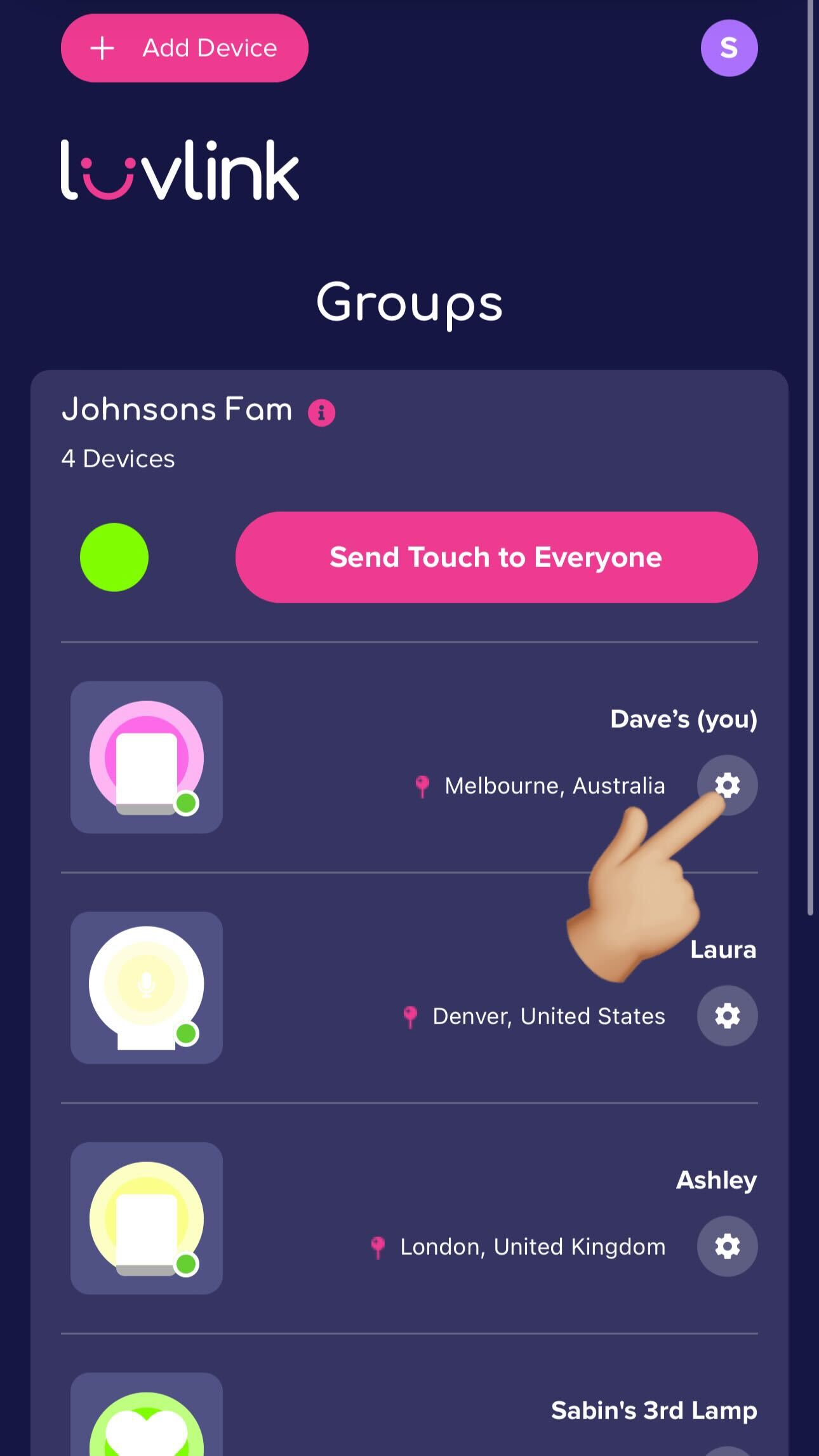
- Once your Friendship Lamp is set up, open its settings in the LuvLink app.
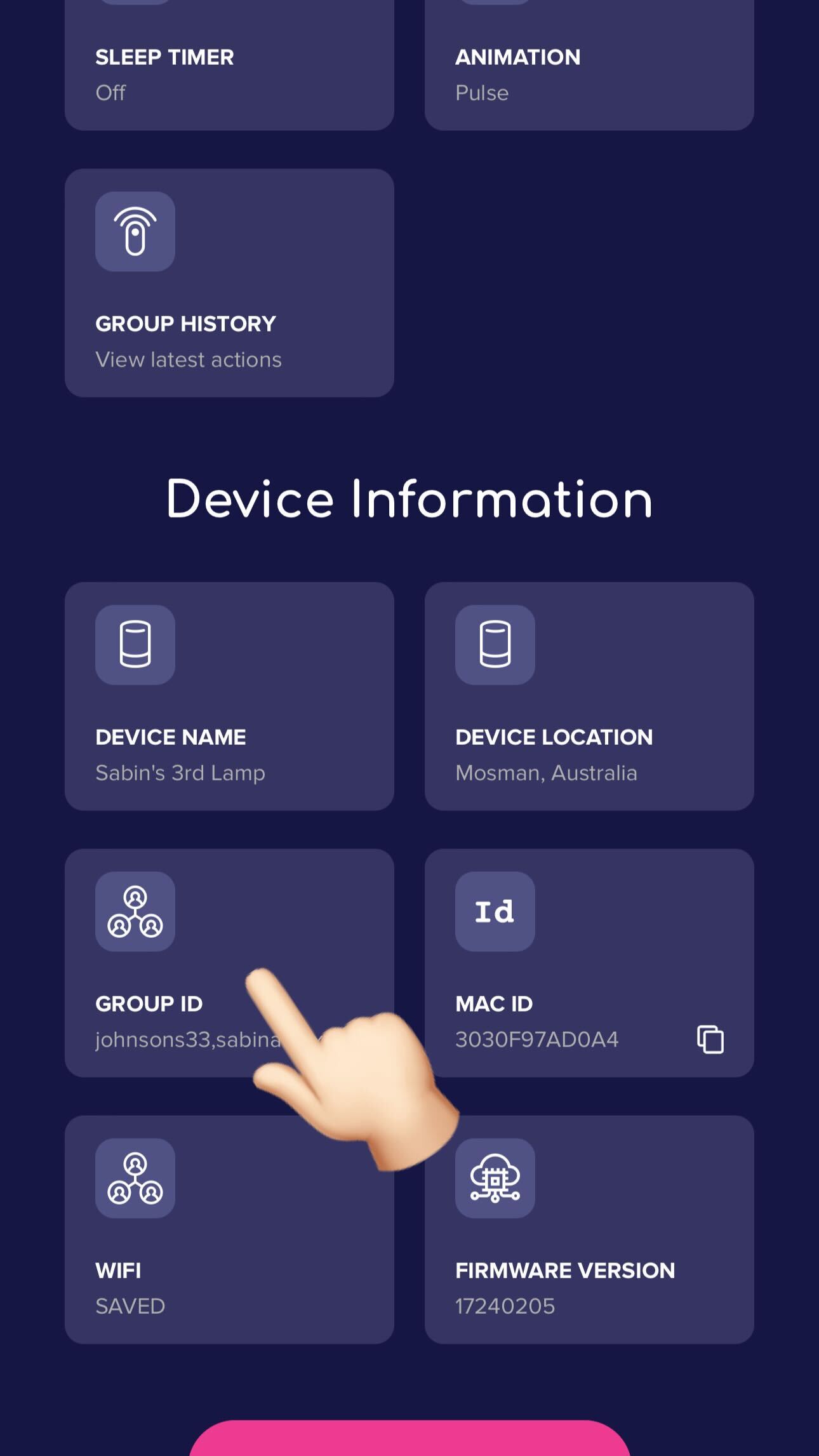
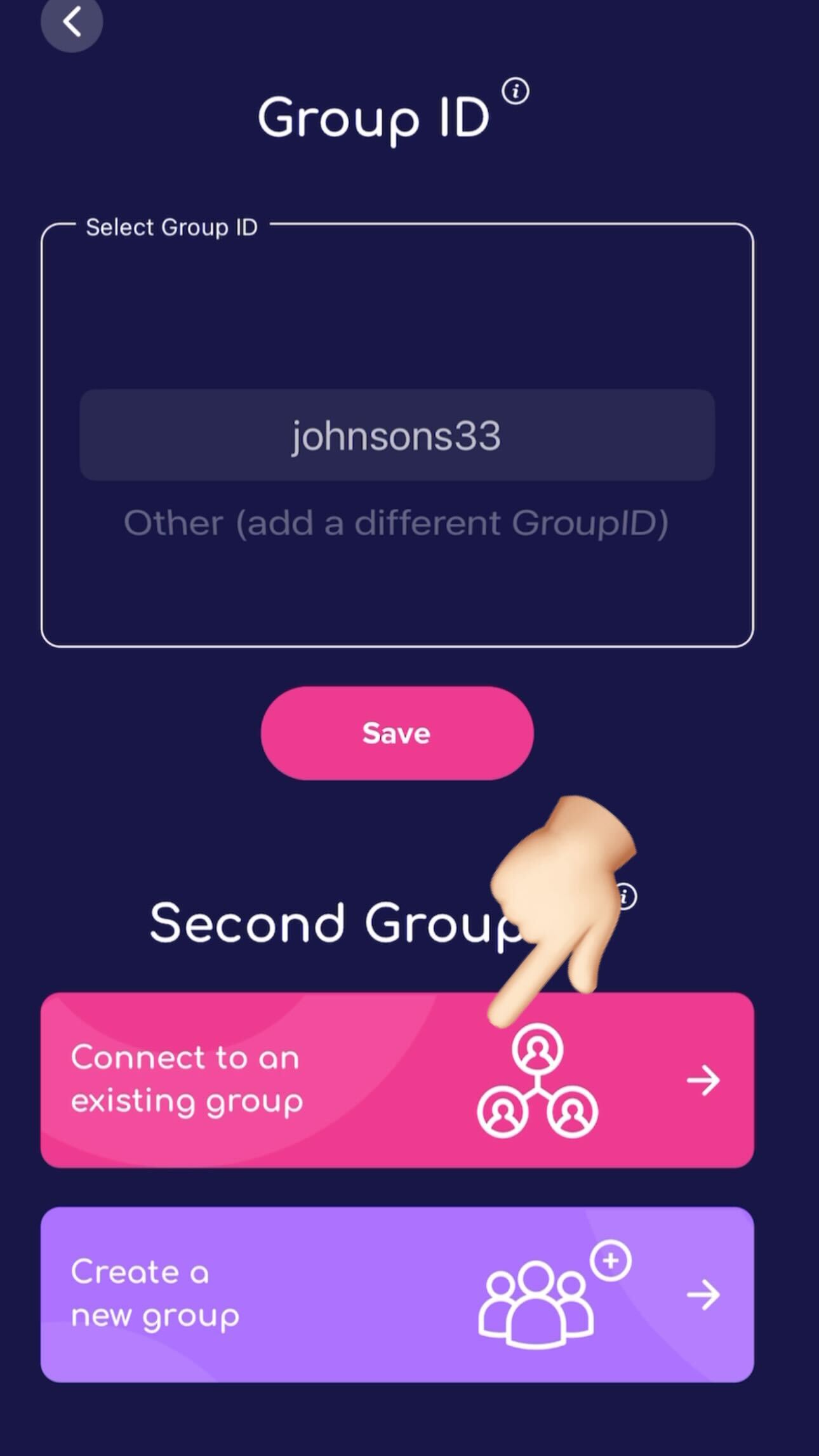
- Open the GroupID settings under Device Information.
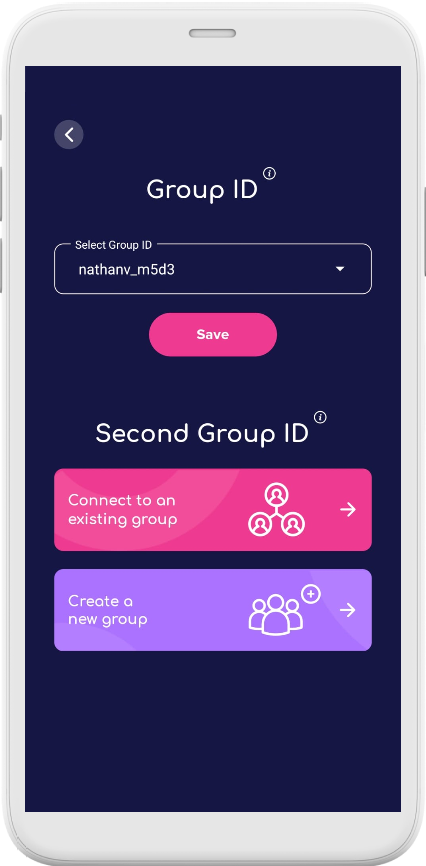
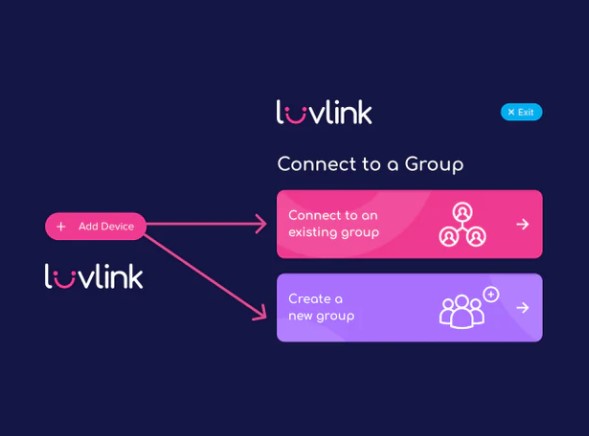
- Either enter an existing GroupID to join a second group, or create a brand new GroupID for your second group of lamps.
Helpful reading
Not sure what a GroupID is or how it works? What Is a GroupID and How Can I Enter It? has everything you need.
If you have any questions, reach out via our contact form — we're happy to help.
Was this useful?