
Checking Your GroupID
If your Friendship Lamp is connected to Wi-Fi but isn't responding to touches from your group — or is lighting up when it shouldn't — the GroupID is the first thing to check. You can view and update it right in the LuvLink app in a few taps, no reset needed.
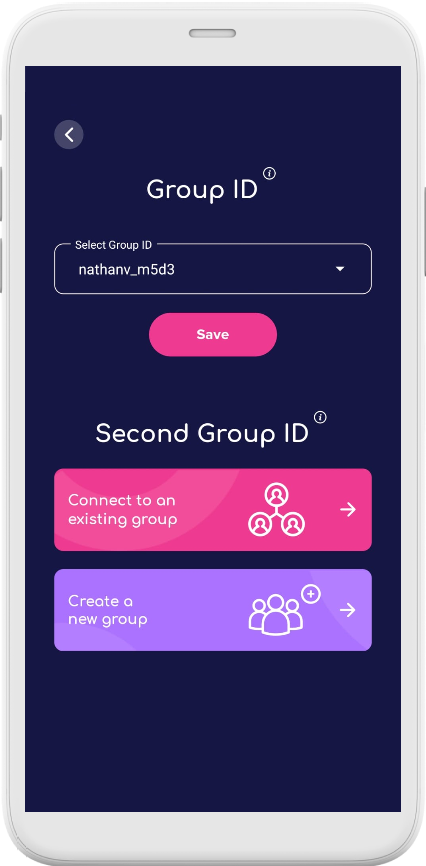
Once your lamp is set up and connected to Wi-Fi, it should light up in the colour someone in your group picks whenever they send a touch. If that's not happening — or it's lighting up at odd times — the GroupID likely just needs to be checked or corrected. You can do this straight from the LuvLink app, without resetting your lamp or starting setup again from scratch.
How to check your GroupID in the LuvLink app
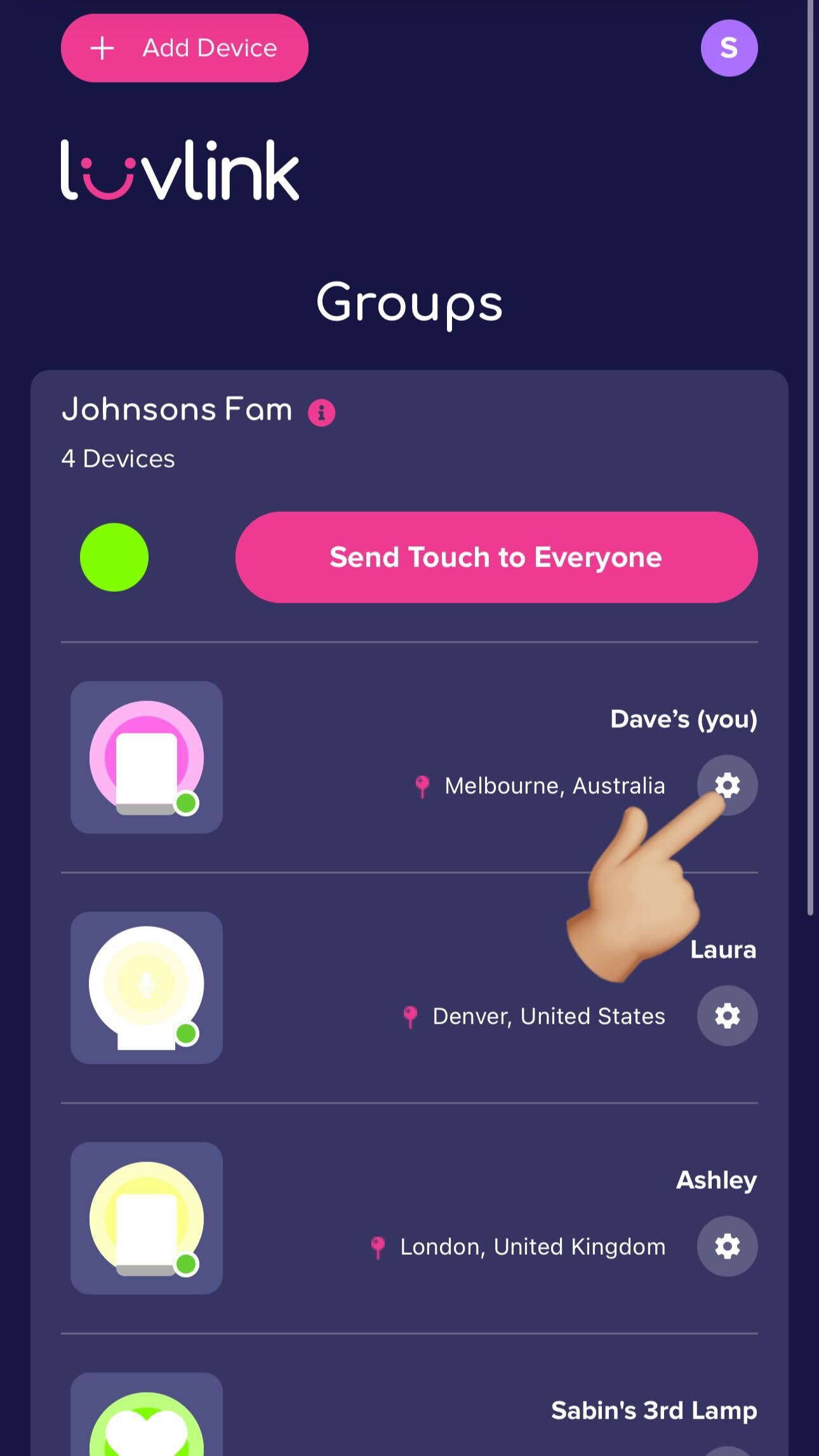
- Open the LuvLink app and go to your Friendship Lamp's settings from the app dashboard.
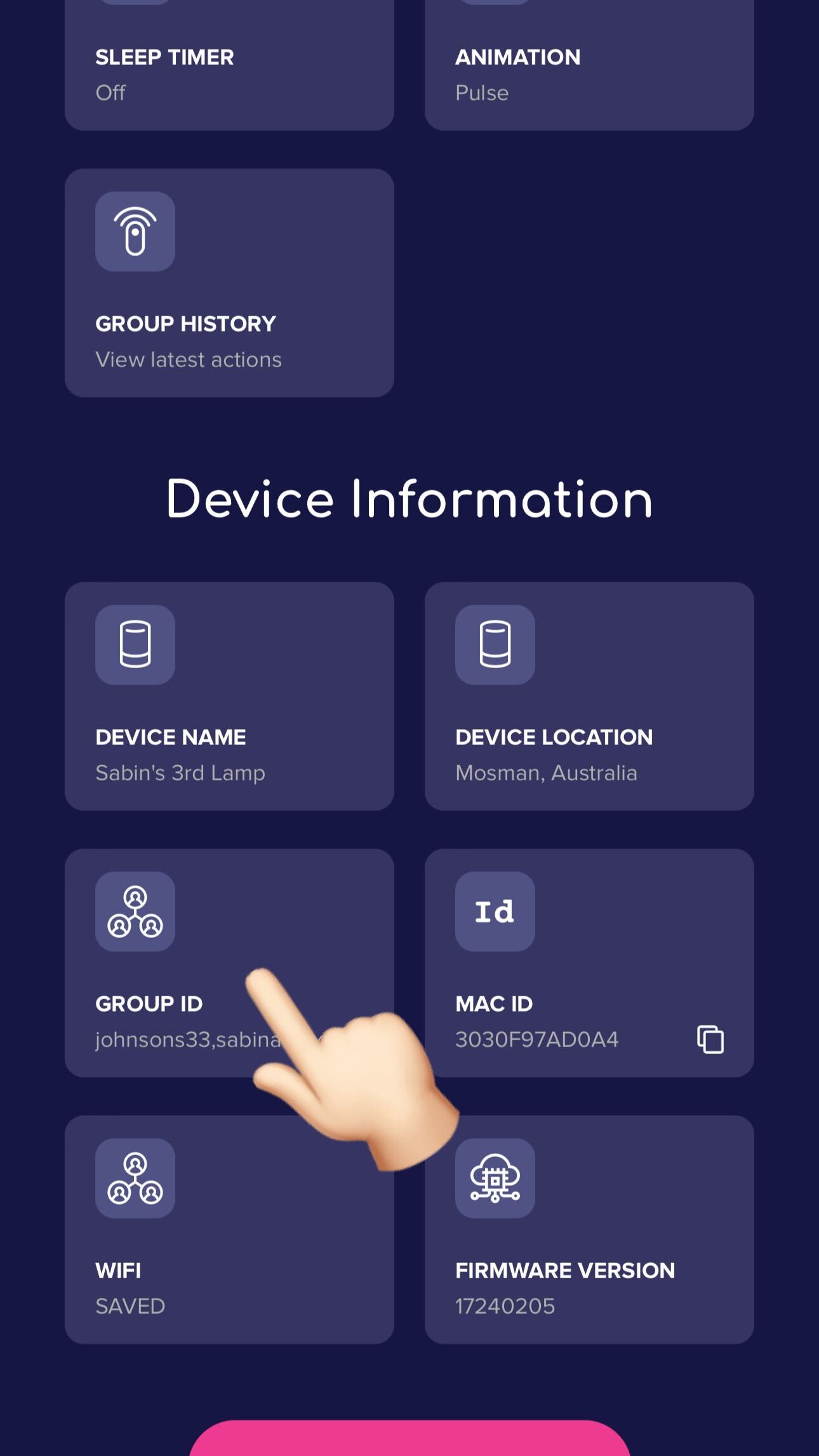
- Open the GroupID tab under Device Information.
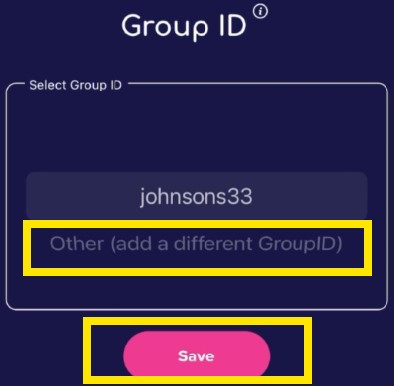
- Either choose the GroupID from the list, or type it in manually, then tap Save.
Important guidelines
A few things to keep in mind when entering your GroupID:
- All letters must be lowercase
- No spaces
- The only special character allowed is an underscore
_
Make sure you enter exactly the same GroupID that was generated in the LuvLink app, or the one your group admin gave you.
Still having trouble?
If the GroupID looks right but your lamp is still behaving strangely, these articles may help:
- My LuvLink Friendship Lamp Randomly Turns On!
- My LuvLink Friendship Lamp is Not Sending/Receiving Colours
If none of that sorts it out, get in touch via the contact form and share as much detail as you can. When you submit your request, select Lamp Troubleshooting and include your GroupID and the MAC IDs of your lamps — that way we can pinpoint the issue and get you back to sending touches as quickly as possible.