
Getting started with the LuvLink Calendar
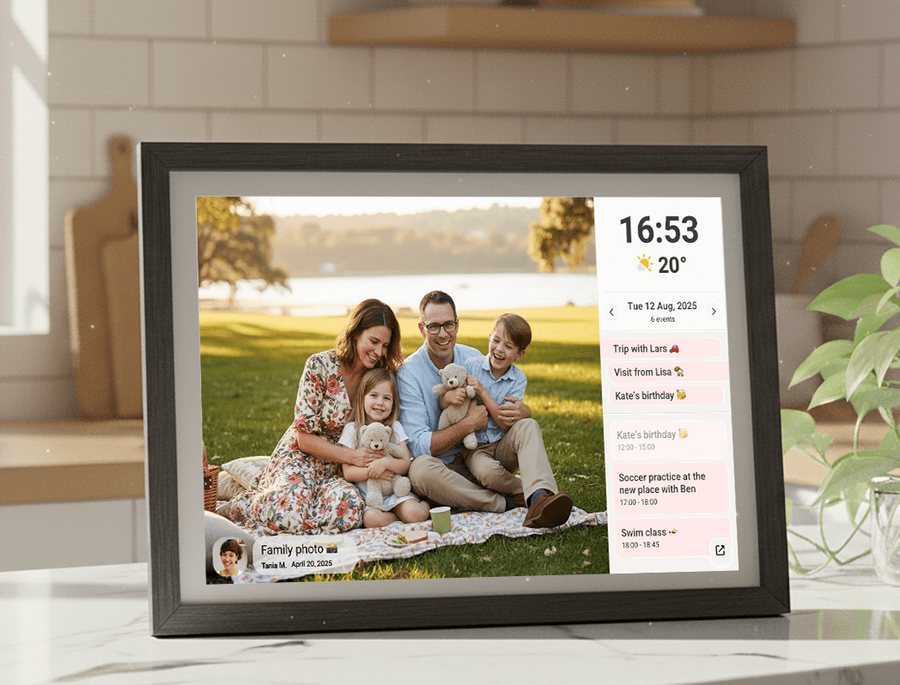
The Calendar feature can show your Google, Outlook or iCloud calendar on your frame, right alongside your photos. To set it up, open Settings, then Calendar, then Add Calendar on the frame, scan the QR code with your phone, choose your calendar provider in the free Frameo app, then accept the request on the frame.
Calendar is entirely optional, and your frame keeps working as a photo frame whether you use it or not.
Before you start
- Your frame needs to be online. Not sure? See Is my frame online?
- You need the Frameo app on your phone. Your frame runs on Frameo, so that's the name you'll see on your phone during setup. See How to connect a phone to a frame.
- You can sync one calendar to a frame for free. Syncing more than one needs a Frameo Premium subscription (more on that below).
Step 1: Start adding your calendar
There are three ways to start. Choose whichever suits you.
From the frame's Settings
- Tap the screen once to bring up the quick menu, then tap Settings

- Tap Calendar in the panel on the left.
- Tap Add Calendar.
- Scan the QR code on the screen with your phone. A setup guide opens in your Frameo app.
From the Fullscreen Calendar
- Tap the screen once to bring up the quick menu, then tap Calendar

- Tap the three dots in the top right corner.
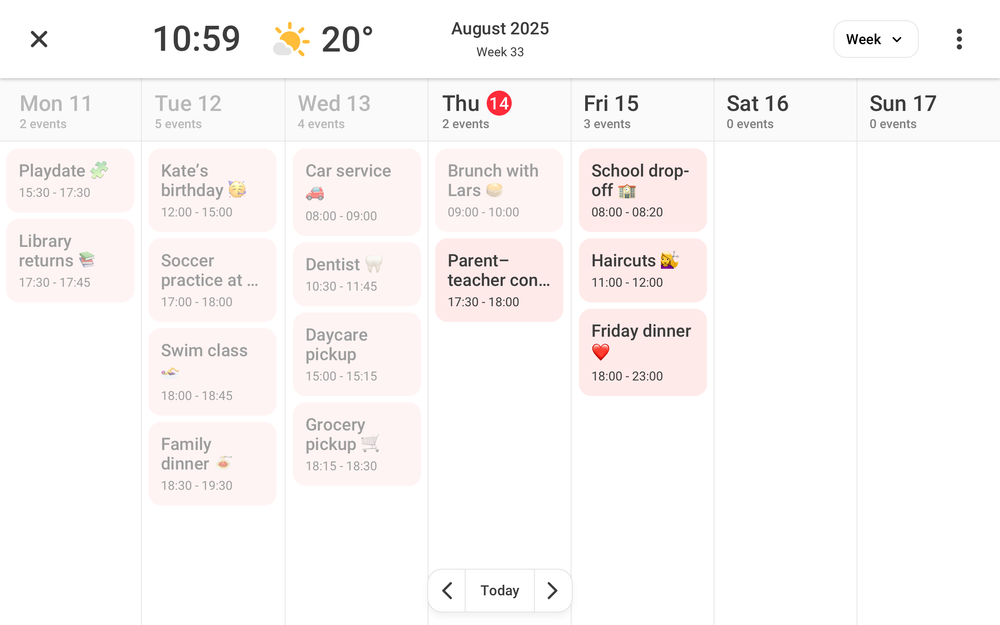
- Tap Add Calendar.
- Scan the QR code on the screen with your phone. A setup guide opens in your Frameo app.
From the Frameo app
- Open the Frameo app and go to your frames. Frameo's guides call this Connected frames or the Frames icon in the bottom bar.
- Choose the frame you want to add a calendar to.
- Tap Calendar. If you don't see it, make sure your Frameo app is updated.
Step 2: Connect your calendar
Choose your calendar provider from the list in the Frameo app, then follow the steps for that provider below. Not sure which one you use?
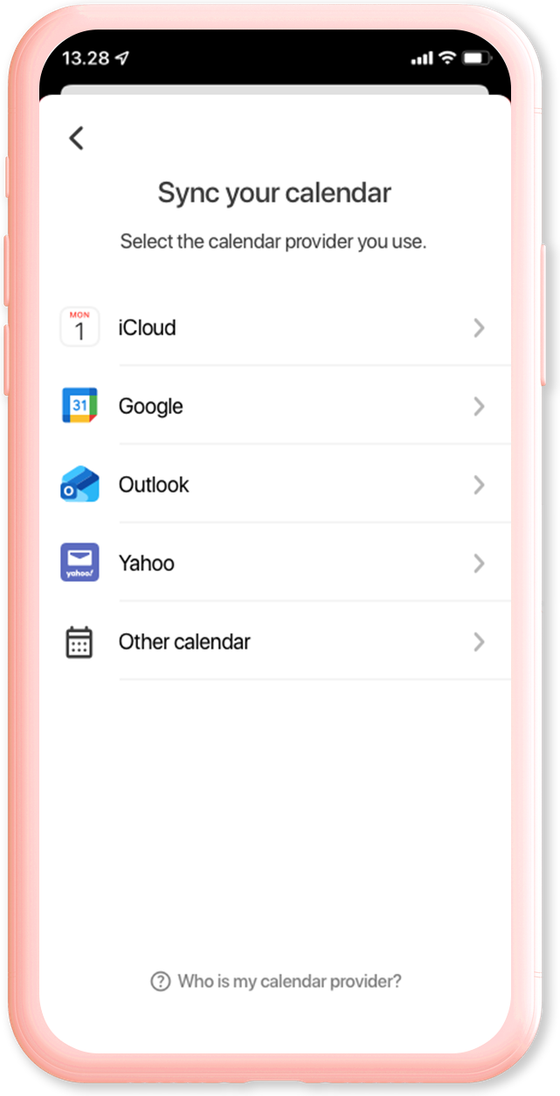
Google Calendar
You'll be taken to the Google sign-in page.
- Sign in to your Google Account.
- Allow Frameo to access your Google Account.
- Select the calendar you want to add to the frame, then tap Next.
Now go to Step 3.
Outlook Calendar
You'll be taken to the Microsoft sign-in page.
- Sign in to your Microsoft Account.
- Select the calendar you want to add to the frame, then tap Next.
Now go to Step 3.
iCloud Calendar
For iCloud, you copy a link from the Calendar app on your iPhone and paste it into the Frameo app.
- Open the Calendar app on your phone.
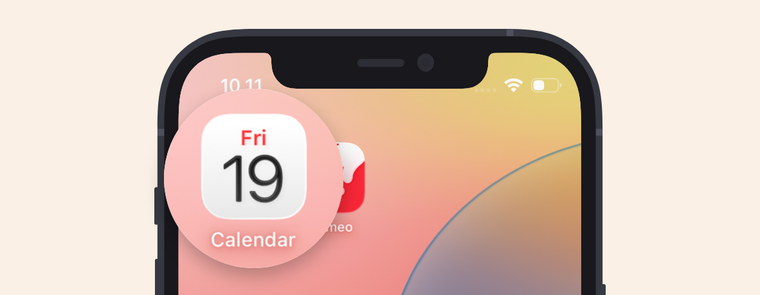
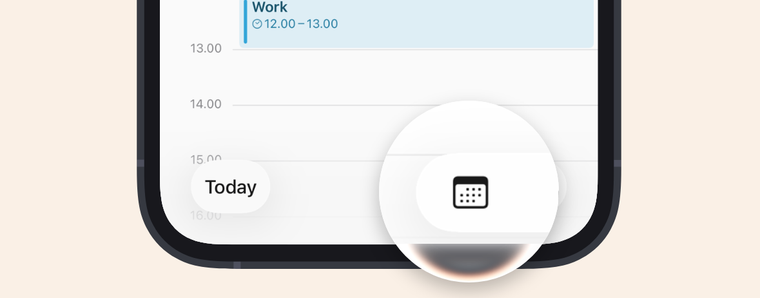
- Tap the calendar icon at the bottom of the screen. If you haven't updated to iOS 26, tap Calendar at the bottom instead.
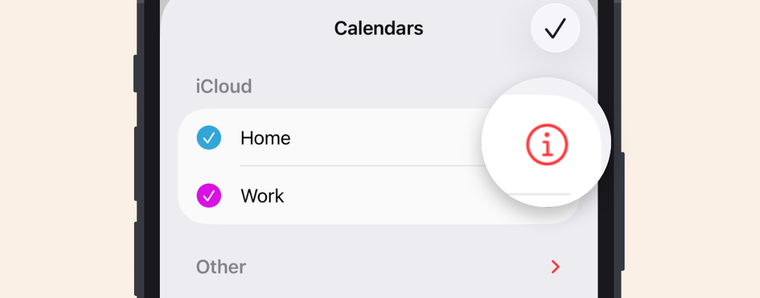
- Tap the i icon next to the calendar you want to connect to your frame.
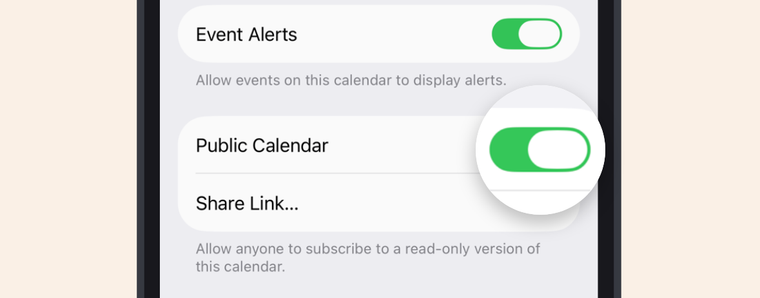
- Turn on Public Calendar, then tap Share Link and Copy.
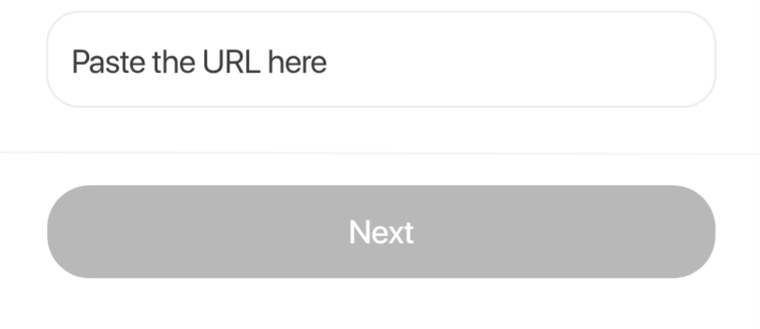
- Go back to the Frameo app, paste the link at the bottom of the setup guide and tap Next.
Now go to Step 3.
Can't see Public Calendar? You need to be the owner of the calendar. The option doesn't appear on a calendar someone else shared with you. To sync a shared iCloud calendar, ask its owner for the public link. If it's your own calendar and the switch still isn't there, Frameo suggests going to your iPhone's Settings, then your name, iCloud, See all and iCloud Calendar, and turning on Use on this iPhone.
Good to know: as your iPhone explains on that screen, Public Calendar allows anyone to subscribe to a read-only version of the calendar.
Yahoo Calendar
Yahoo may appear in the app's list, but it isn't currently possible to sync a Yahoo calendar with the frame. Frameo explains that a limitation on Yahoo's platform temporarily prevents shareable calendar links from being created, and they are monitoring the situation.
Another calendar provider
You'll need a public iCal link, which often ends in .ics.
- Look for Sharing or Publish in your calendar's settings to find your link.
- Select Other Calendar in the Frameo app.
- Paste the link into the URL field.
A work or school calendar
Work and school calendars from Outlook or Google Workspace may have trouble connecting, usually because of security policies or administrator restrictions set by the organisation. Instead of signing in, use a secret iCal link and choose Other Calendar as your provider. This creates a read-only connection that doesn't need a direct login.
You have to create the link in a web browser or the desktop version on a computer, not in the mobile app. To get it onto your phone easily, email the link to yourself.
In Outlook:
- Click the cogwheel (Settings) in the top right corner.
- Select Calendar in the panel on the left.
- Click Shared calendars.
- Scroll down to Publish a calendar.
- Select the calendar you want to add to your frame from the dropdown menu.
- Select Can view all details in the second dropdown menu and click Publish.
- Click the ICS link and select Copy link.
- Open the Frameo app on your phone and select Other calendar as your provider.
- Paste the link and tap Next.
In Google Calendar:
- Click the cogwheel at the top of the page and go to Settings.
- In the left panel, under Settings for my calendars, select the calendar you want to add to your frame.
- Click Integrate calendar.
- Find Secret address in iCal format and copy the link.
- Open the Frameo app on your phone and select Other calendar as your provider.
- Paste the link and tap Next.
Step 3: Accept the request on the frame
Once the calendar has synced, a request appears on the frame as a notification saying a friend is asking for permission. The frame's owner needs to tap the notification, then tap Allow.
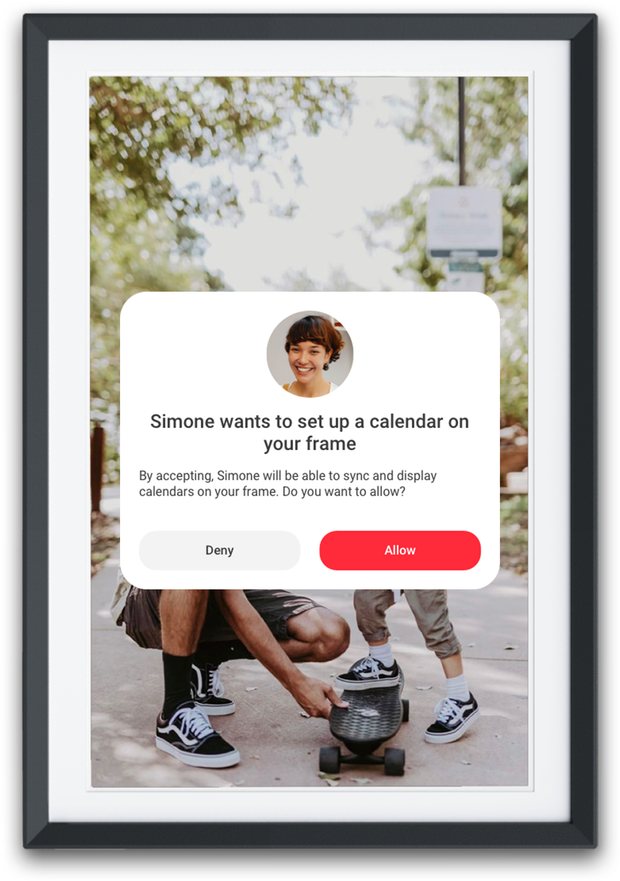
That's it: your calendar is set up and will keep syncing with the frame.
Can't see the request? Exit the settings and return to the slideshow. The notification should appear there.
Not sure which provider you use?
Most calendars are linked to your email address, so the end of your address is usually the clue:
- Google Calendar: @gmail.com
- Outlook Calendar: @outlook.com, @hotmail.com or @live.com
- Yahoo Calendar: @yahoo.com or @myyahoo.com
You can also look in your calendar app under Settings or Accounts, which usually name the service, such as iCloud, Microsoft or Yahoo.
Still not sure? You can connect any calendar with a public iCal link by selecting Other Calendar in the Frameo app (see Another calendar provider).
Using your calendar
The frame syncs with your connected calendar every 15 minutes. It displays your calendar rather than replacing it, so to add or change an event, use your calendar app as you normally would.
Change the view. In the Fullscreen Calendar, tap the view button in the top right corner and choose 4 days, Week or Month.
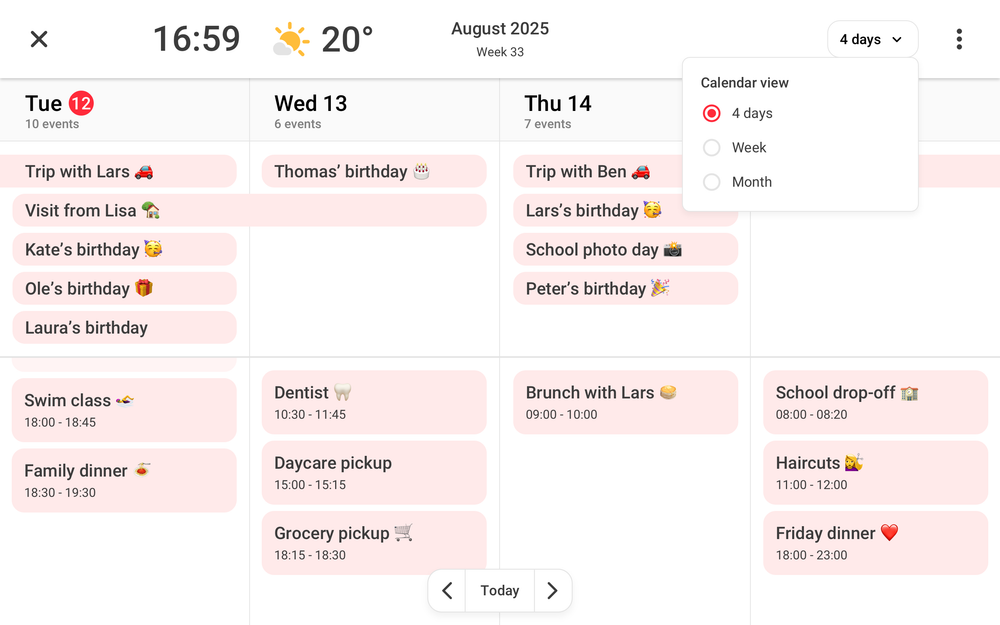
See your photos and calendar together. Hybrid View adds a calendar banner to your slideshow:
- Tap the screen once to bring up the quick menu, then tap Settings.
- Tap Calendar in the panel on the left.
- Turn on Hybrid view mode.
Syncing more than one calendar
Syncing more than one calendar needs a Frameo Premium subscription. To sign up, open the Frameo app, tap the Menu icon in the bottom bar, then tap Account and Subscription.
If your calendar won't sync
Check the frame is online, then try a manual sync:
- Tap the screen once to bring up the quick menu, or tap the three dots in the top right corner of the Fullscreen Calendar, then go to Settings.
- Tap Calendar in the panel on the left.
- Tap your calendar at the top.
- Tap Sync now.
Is the calendar shared with you? Make sure you have permission to use it, and that its owner hasn't changed the access permissions or sharing settings.
Changed your Google or Microsoft password recently? You may need to reconnect your calendar. Remove it (see below), then add it again from Step 1.
Is it a work or school calendar? See A work or school calendar.
Remove a calendar
- Tap the screen once to bring up the quick menu, then tap Settings.
- Tap Calendar in the panel on the left.
- Tap your calendar at the top.
- Tap Remove calendar.
Still stuck? Contact us and we'll help. Please include any error message you see and the name of your calendar provider.