
Troubleshooting Common Error Messages
If you hit an error message while setting up your Friendship Lamp, the fix is usually quick. Most errors come down to one of three things: the lamp isn't in reset mode (dim red), the MAC ID was entered incorrectly, or a Wi-Fi setting needs a small change. Find your error message below and follow the steps.
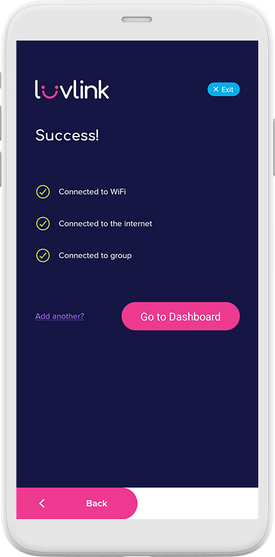
Here's what you'll see on the app when everything is set up and your lamp is connected to Wi-Fi:
1. Unable to Join the Friendlamps Network
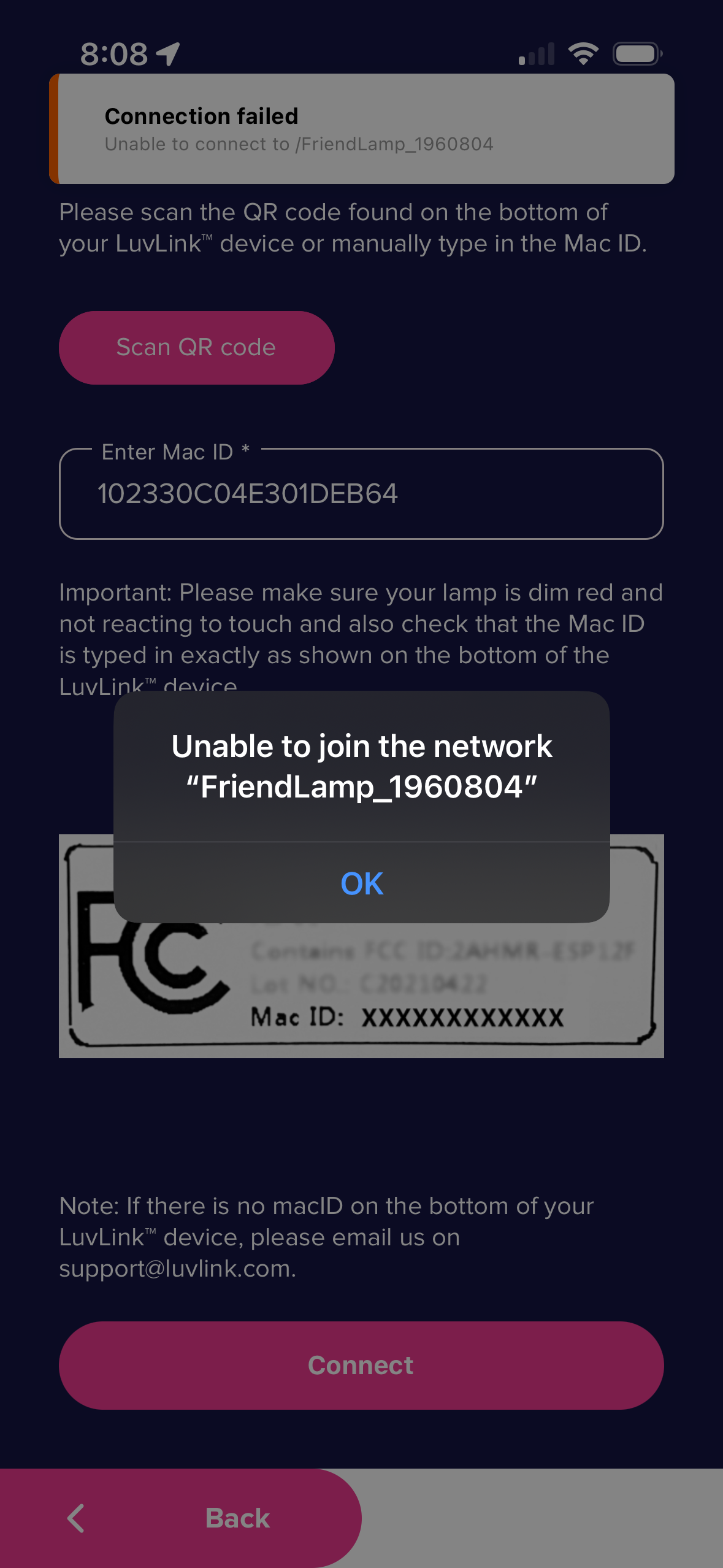
This usually means the lamp isn't in setup mode, or the MAC ID doesn't match.
- Make sure your lamp is showing dim red before you begin setup. For Classic and Modern Friendship Lamps, hold down on the touchpad for 3–5 minutes. For the Infinity Range, insert a pin into the reset pinhole on the underside of the lamp.
- Find the sticker on the bottom of your lamp and double-check your MAC ID. Enter it carefully — one wrong character will cause this error.
2. Failed to Connect to WiFi
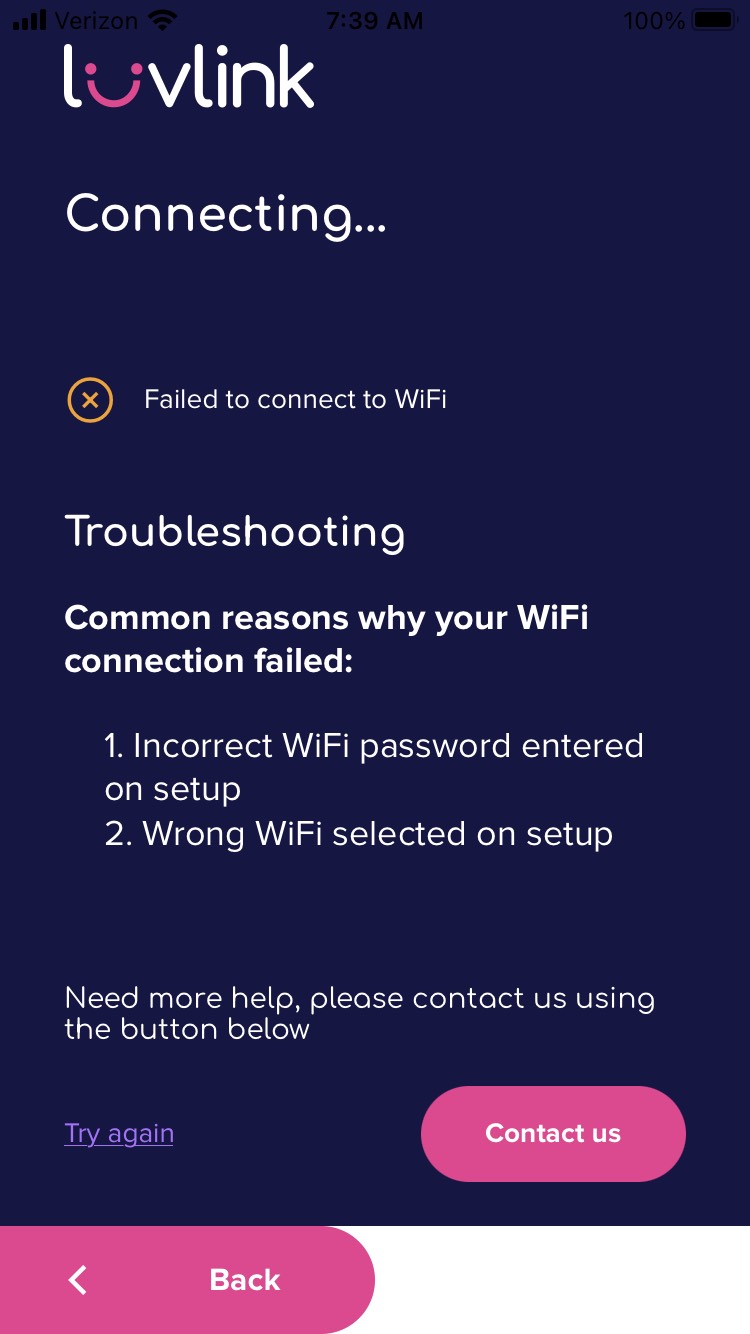
The lamp connects on the 2.4 GHz band, so this error often points to a Wi-Fi setting or a password typo.
- Check that the 2.4 GHz Wi-Fi band is switched on in your router settings, and make sure you select the 2.4 GHz network during setup in the LuvLink app.
- Confirm your Wi-Fi security type is set to WPA.
- Re-enter your Wi-Fi password carefully. Passwords are case-sensitive, so check whether your phone's auto-capitalisation is on — it can change the first letter without you noticing.
- For more detail on Wi-Fi compatibility, see our Wi-Fi compatibility article.
3. Connect to Device Failed
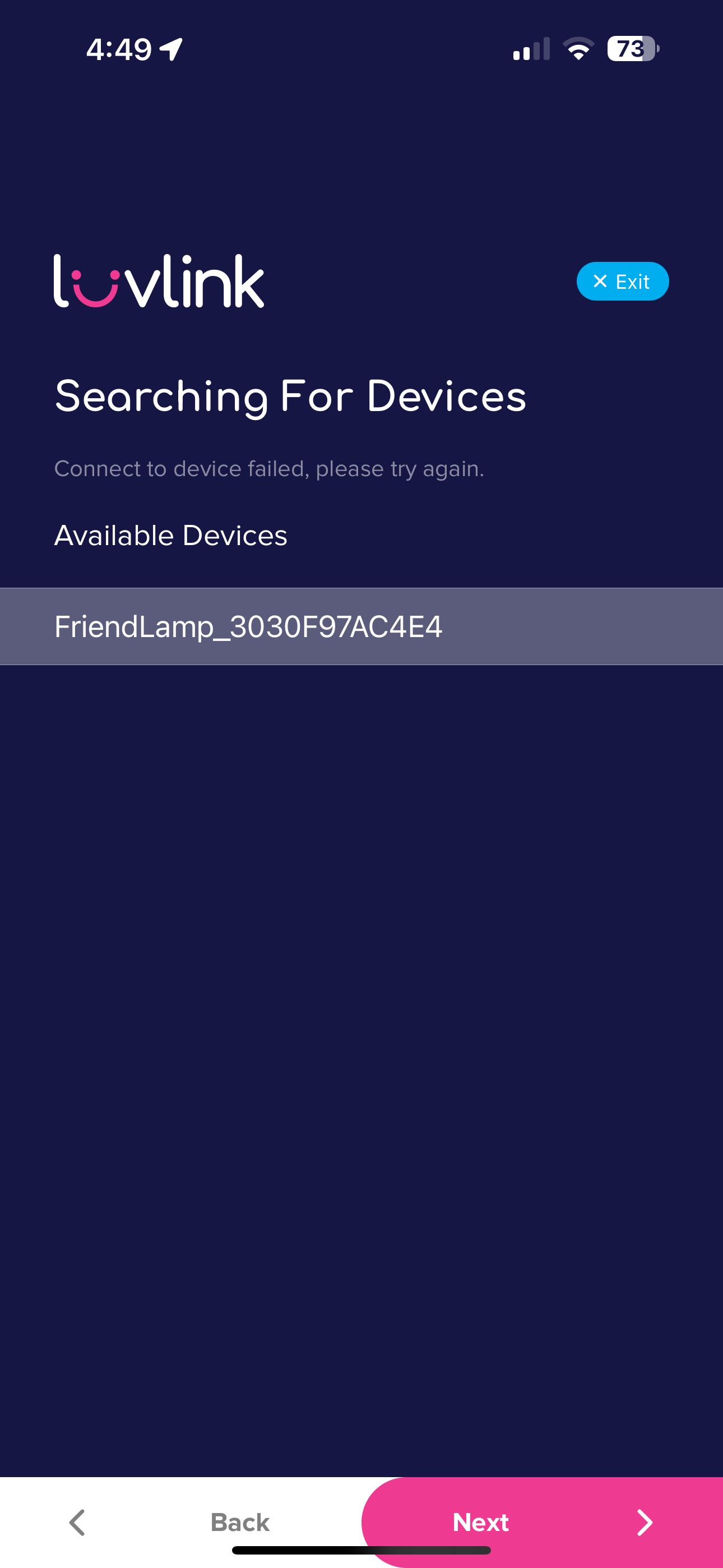
This often clears up by resetting the lamp and clearing any old network or Bluetooth pairing from your phone.
- Unplug your lamp, plug it back in, and wait until it shows dim red. Hold down on the touchpad for 3–5 minutes if needed.
- Close the LuvLink app, then go to your phone's Wi-Fi settings. Check whether a network called Friendlamps_XXXX appears in the list of nearby networks. If it does, tap Forget on that network.
- If you've previously set up your lamp via Bluetooth, go to your phone's Bluetooth settings and Forget or Remove the lamp from the device list.
- Open the LuvLink app again and restart the setup process.
- If a Bluetooth Pairing Request pops up at any point, make sure you accept it.
Still stuck?
Reach out to our support team via the Contact Form and tell us as much as you can — especially how far through the setup you got before the error appeared.
When you create a ticket, please select Lamp Troubleshooting as the category and include the GroupID and MAC IDs of your lamps. That way we can pinpoint the issue and get you sorted as quickly as possible.