
What Do I Do if My lamp is Red?
A dim red glow means your Friendship Lamp is in Wi-Fi setup mode because it has lost its connection. This article walks you through getting it back online with the LuvLink app — most people are reconnected within a few minutes.
Why is my lamp glowing dim red?
The lamp shows dim red whenever it can't reach your Wi-Fi. That usually happens for one of these reasons:
- A temporary internet outage
- Your Wi-Fi network name or password has changed
- You've got a new router
- You've moved and need to connect to a different Wi-Fi network
If you think it was just a temporary outage, try unplugging the lamp and plugging it back in first — it may reconnect on its own.
Things to check before you start
A couple of quick checks that prevent most setup problems:
- Use a 2.4 GHz network. Your lamp needs 2.4 GHz to connect.
- Passwords are case-sensitive, so watch out for accidental capital letters or auto-capitalisation.
How to set up your lamp in the LuvLink app
- Tap + Add Device to start the setup process.
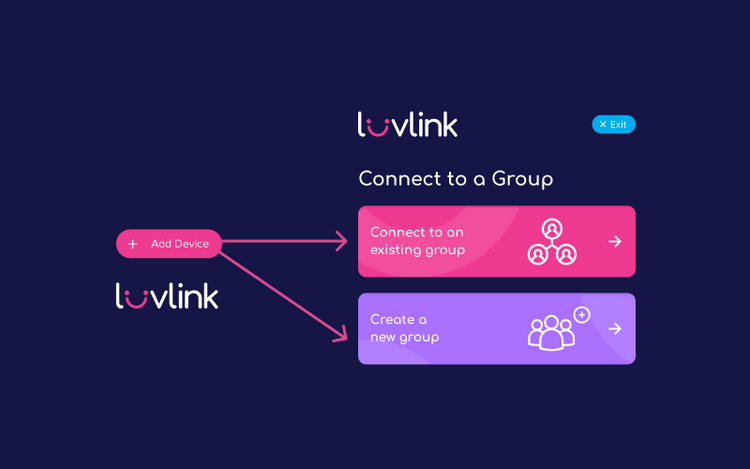
- Choose to create a new group, or connect to an existing group.
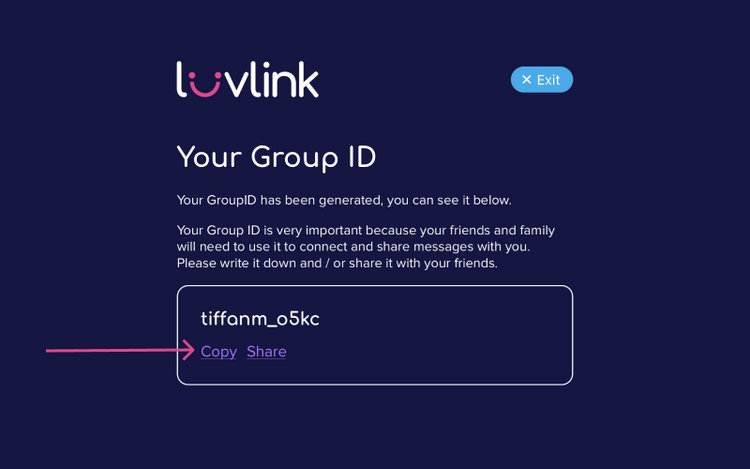

- Select your Wi-Fi network and enter your password.
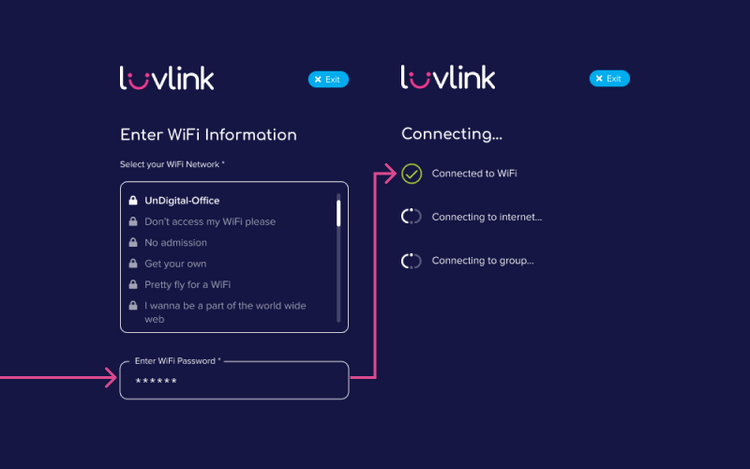
For the full walkthrough, see the Friendship Lamp Setup Guide with the LuvLink App.
Still not connecting? Try these fixes
If setup won't complete, work through these one at a time:
- Try the setup on a different phone.
- Reboot your router (switch it off for 10 seconds, then back on).
- Test using your phone's mobile hotspot, then switch back to your home Wi-Fi.
- Unplug the lamp, wait a moment, then plug it back in.
Still stuck?
If none of that worked, contact us and we'll help. Please choose the Lamp Troubleshooting topic and include your GroupID and MAC IDs so we can look into it faster.