
Connecting to the Lamps in Your Group
Your Friendship Lamp connects to other lamps by sharing the same GroupID. Once your lamp is on your Wi-Fi and you've entered the correct GroupID in the LuvLink App, touching the sensor plate lights up every lamp in the group. This article shows you how to connect — and what to check if your lamps are online but not talking to each other.
Before you start
Make sure your lamp is already connected to your Wi-Fi. When you plug it in, it runs through its startup colours, swirls green while it connects, then turns off. Once it goes off, it's ready.
For the full walkthrough, see the Setup Guide.
How it works
When you tap the top sensor plate on your Friendship Lamp, every lamp in your group lights up with your personalised colour. It flashes or pulses for a few seconds, then stays on that colour for 30 minutes by default.
You can adjust these in the app — see Animation Settings and Dimming Time.
How to connect to other lamps in your group
Every lamp in your group needs to have the exact same GroupID entered during setup.
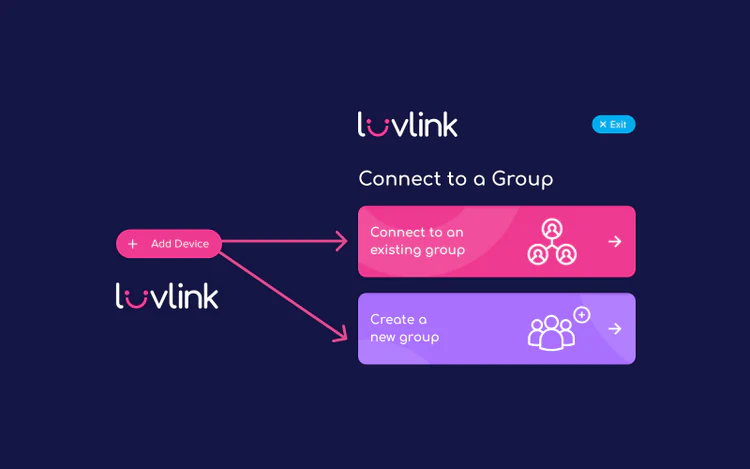
Create a new group
- Select Create a New Group in the LuvLink App — the app will generate a unique GroupID automatically.
- Save your GroupID — take a screenshot, or share it with your group by email or messaging app.
The person who creates the group becomes the Group Admin. The Group Admin needs to approve any other Friendship Lamps that join, and has access to the settings of all lamps in the group.
Connect to an existing group
Select Connect to an Existing Group in the LuvLink App, then enter the GroupID exactly as your Group Admin shared it — all lowercase, no extra spaces.
For more on GroupIDs, see What Is a GroupID and How Can I Enter It?
Lamps are swirling green but not communicating?
If your lamps swirl green when plugged in but don't light up when someone touches theirs, the GroupID is almost certainly the issue. The most common cause is a mistyped GroupID — it's easy to miss a letter or digit, or accidentally add a space.
How to check or fix your GroupID in the app
- Open your dashboard in the LuvLink App.
- Tap the cog wheel next to your lamp.
- Open the GroupID tab.
- Make any changes needed.
- Tap Save, then go back to your dashboard.
For step-by-step help, see Checking Your GroupID.
Still not working?
If your lamps still aren't communicating after checking all of the above, get in touch with the LuvLink Support Team via the Contact Form. Please include your MAC ID and GroupID.